
Lighting walkthrough
How the lighting demo puts six LitProgram options side by side, shares one set of lights between them, and picks the surface under the pointer.
Open the demo → · Source on GitHub
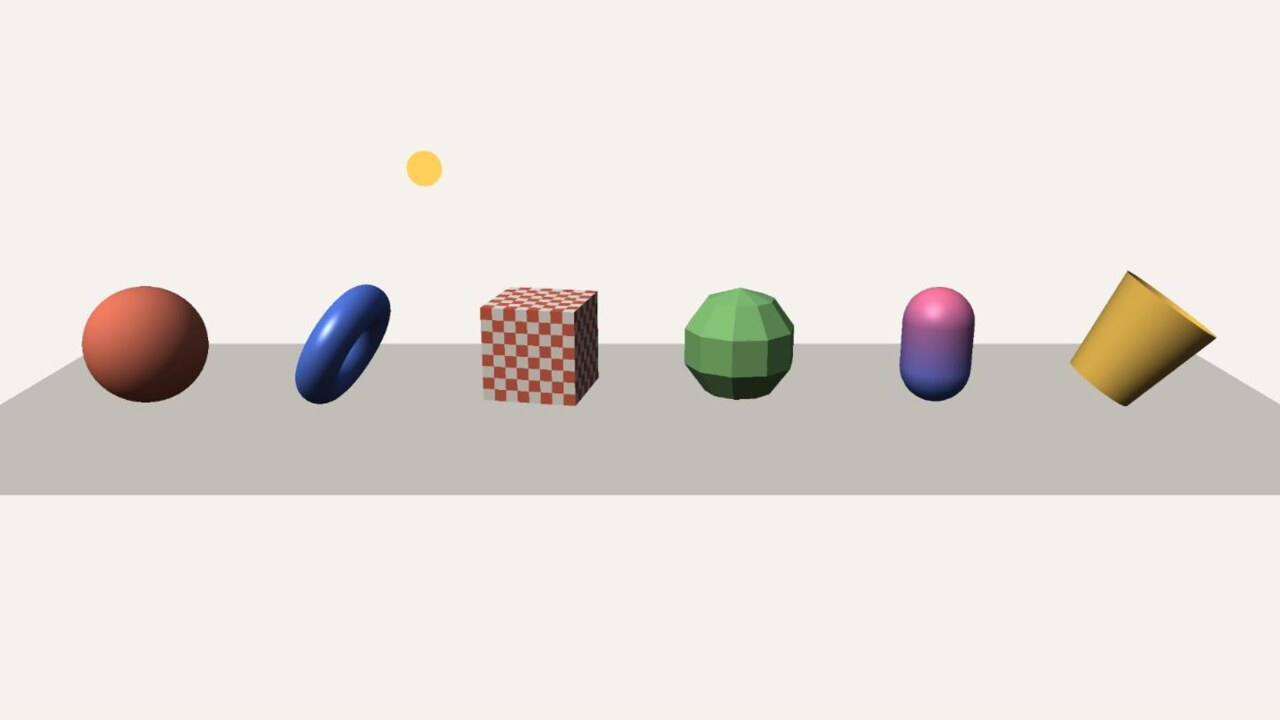
The demo is a row of shapes on a floor, each showing one option of the built-in lit material: plain Lambert, a highlight, a texture, flat shading, vertex colours and a double-sided open cylinder. A small yellow sun shows where the light comes from. Move it in the panel and every shape relights at once; hover a shape and a dot, a line and a label show what a raycast found there. All of it is in one file, lighting/index.js, with a Tweakpane for the controls.
The renderer and camera
The scene starts the way most 3D scenes do: a Renderer with its canvas on the page, and a DollyCamera that orbits a target as you drag and zooms as you scroll.
const renderer = new Renderer({
  dpr: Math.min(window.devicePixelRatio, 2),
  clearColour: [0.96, 0.95, 0.93, 1]
})
const { gl } = renderer
document.body.appendChild(gl.canvas)

const camera = new DollyCamera(
  {
    element: gl.canvas,
    target: new Vec3(0, 0.4, 0),
    minDistance: 3,
    maxDistance: 20
  },
  { fov: 35, near: 0.1, far: 100 }
)
camera.setPosition(0, 3.2, 9.5)
The first object is the orbit controls, the second the perspective. Capping the pixel ratio at 2 keeps the fill rate in check on high-density phones. On resize, the demo sets renderer.dimensions and calls camera.perspective({ aspect }).
One Lights for every shape
Every lit program in the scene is given the same Lights. Its values live in uniforms that each program holds, so setting a light updates every shape without touching the programs. The panel works in degrees, which the demo turns into a direction towards the sun:
const sunDirection = () => {
  const a = (lightParams.azimuth * Math.PI) / 180
  const e = (lightParams.elevation * Math.PI) / 180
  return [Math.cos(e) * Math.sin(a), Math.sin(e), Math.cos(e) * Math.cos(a)]
}

const updateLights = () => {
  const direction = sunDirection()
  lights.direction = direction
  lights.colour = toRGB(lightParams.colour)
  lights.intensity = lightParams.intensity
  lights.sky = toRGB(lightParams.sky)
  lights.ground = toRGB(lightParams.ground)
  lights.ambient = lightParams.ambient
  // ...and the sun mesh moves along the same direction
}
sky and ground are the hemisphere light, which stands in for light bounced around a room, and ambient is added everywhere. The light is in world space, so the shading stays put as you orbit while the highlights, which depend on where you're looking from, move with the camera. Lights and LitProgram explains how the terms add up.
The sun itself is a small sphere with its own Lights: no directional light, no hemisphere, and an ambient of 1, so it shows its flat colour from every side and reads as a source rather than an object.
const sun = new Mesh(gl, {
  geometry: new Sphere(gl, { radius: 0.12, widthSegments: 16 }),
  program: new LitProgram(gl, {
    lights: new Lights({
      intensity: 0,
      sky: [0, 0, 0],
      ground: [0, 0, 0],
      ambient: 1
    }),
    colour: [1, 0.82, 0.35]
  })
})
Six shapes, six options
The shapes are a list of descriptions, each a geometry from the primitives and the options for its LitProgram:
const SHAPES = [
  {
    name: 'Lambert',
    geometry: () => new Sphere(gl, { radius: 0.5, widthSegments: 48 }),
    material: { colour: [0.88, 0.46, 0.36] }
  },
  {
    name: 'Specular',
    geometry: () => new Torus(gl, { radius: 0.4, tube: 0.17 /* ... */ }),
    material: { colour: [0.3, 0.45, 0.85], specular: 0.8, shininess: 48 },
    tilt: 0.5
  }
  // Map, Flat shading, Vertex colours, Double sided
]
One loop turns each into a mesh, spaced along the x axis, with a program made from { lights, shadow, ...shape.material }. Keeping the options as data means the panel can be built from the same list, a folder per shape.
A few of the options need something to read:
Map. The checker is drawn into a 2D canvas and handed to
Textureas itsimage. The box's uvs place it on every face, andcolour: [1, 1, 1]leaves the texture's own colours alone.Vertex colours.
vertexColours: truemultiplies the colour by acolourattribute, which the demo adds to the capsule with a blend from blue at the bottom to pink at the top:jsgeometry.addAttribute( 'colour', new GeometryAttribute({ size: 3, data: colours }) )Geometry and attributes covers adding attributes of your own.
Flat shading. A sphere with only 10 segments, so the facets are large enough to see. The geometry keeps its smooth normals;
flatShadingshades each triangle from its face normal instead.Double sided. An open-ended
Cylinder, tilted so you can see inside. WithoutdoubleSidedthe inside would be culled and you'd see straight through.
colour, specular and shininess are uniforms, so the panel sets them freely. flatShading and doubleSided change the shader, and setting them recompiles the program in place:
folder
  .addBinding(material, 'flatShading', { label: 'flat shading' })
  .on('change', () => (shape.program.flatShading = material.flatShading))
That's fine in response to a click, but not something to do every frame. See Changing a program.
The floor and its shadow
The floor is a Plane turned flat with its own LitProgram. The shapes cast a Shadow onto it and onto each other. The shadow covers a sphere around target, so the demo sizes it to the row and no larger, since the map's pixels are spread over the whole area:
const shadow = new Shadow(gl, {
  lights,
  target: new Vec3(0, 0.5, 0),
  size: ((SHAPES.length - 1) / 2) * SPACING + 1,
  mapSize: 2048
})
Each shape is added as a caster with shadow.add(shape.mesh), and each program, the floor's included, is a receiver. The shadows toggle sets program.shadow to the shadow or null on every receiver, which recompiles them, and softness is a plain property read on the next render.
Helpers
A GridHelper marks every half unit of the floor and an AxesHelper the origin, lifted 0.01 so it doesn't fight the grid's centre lines. The wireframe toggle makes a WireMesh for each shape the first time it's turned on, and parents it to the shape so it spins along:
shape.wire = new WireMesh(gl, {
  geometry: shape.mesh.geometry,
  colour: [0.1, 0.1, 0.12],
  opacity: 0.35
})
shape.wire.setParent(shape.mesh)
Turning it off sets the parent to null rather than freeing it, so turning it on again is free. Debug helpers has the rest of the helpers.
The labels under each shape are plain DOM elements. Each frame, camera.project turns a point below the shape into normalised device coordinates, which the demo scales to pixels and writes into a transform.
Hovering a shape
Pointer moves only record the pointer in normalised device coordinates. The shapes spin under a still pointer, so the cast runs every frame:
const hit = pointer
  ? raycast
      .castMouse(camera, pointer)
      .intersectMeshes(SHAPES.map((shape) => shape.mesh))[0]
  : null
intersectMeshes returns hits nearest first, each with the point, the interpolated normal, the face normal, the face's index and the uv. The demo moves a small sphere to the point and draws the normal with a Polyline through two points:
// Flat-shaded geometry still has smooth normals; it's shaded by its faces,
// so show the face normal there
const n = shape.program.flatShading ? hit.faceNormal : hit.normal
normalLine.setPoints([
  [p.x, p.y, p.z],
  [
    p.x + n.x * NORMAL_LENGTH,
    p.y + n.y * NORMAL_LENGTH,
    p.z + n.z * NORMAL_LENGTH
  ]
])
The hit marker uses a Lights with no light at all, only the default ambient, so it reads as a near-black dot.
The loop
The order in the loop matters, because three things read the world matrices: the raycast, the shadow and the render.
camera.update()
// Up to date for the raycast, rather than only once rendering
scene.updateMatrixWorld()
camera.updateMatrixWorld()
hover()
if (lightParams.shadows) shadow.render({ scene, update: false })
renderer.render({ scene, camera })
camera.update() applies the orbit. Updating the matrices by hand before the hover means the raycast sees this frame's spin rather than the last one's, and update: false tells the shadow they're already done. The renderer updates them again as it draws, as it does by default.
See also
- Lights and LitProgram and Shadows, for every option shown here
- Raycast, for picking meshes, bounds and planes
- Your first 3D scene, for the renderer, camera and loop on their own
- API:
LitProgram,Lights,Shadow,Raycast,DollyCamera